Unix Timestamps in Log Files — How to Read and Debug Them
When something breaks in production at 2 AM, the first thing you do is pull the logs. And the first obstacle is often a wall of Unix timestamps — 10-digit integers that tell you exactly when each event happened, if only you could read them. 1744070400 is precise, unambiguous, and completely opaque until you convert it.
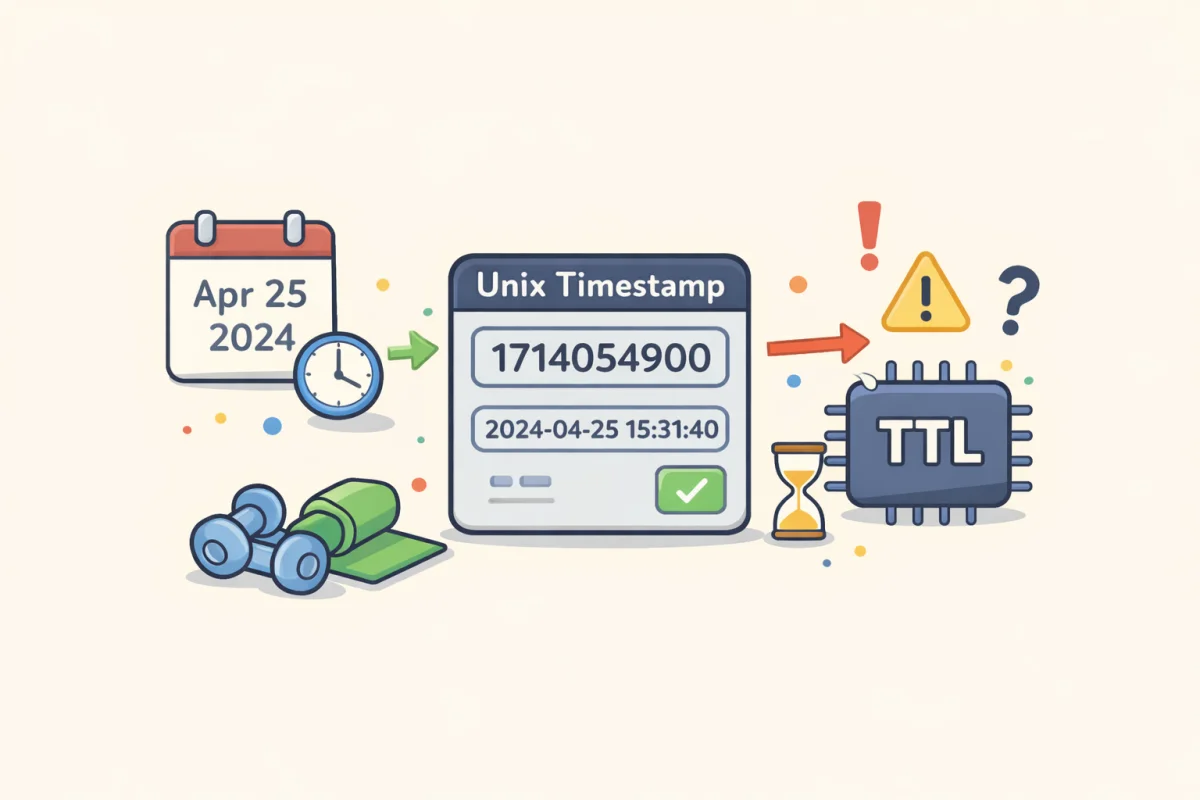
The Unix Timestamp Converter turns any raw timestamp into a readable date instantly. This article covers how timestamps appear in logs, how to convert and correlate them efficiently, and where timestamp-related bugs tend to hide during debugging.
Why Logs Use Unix Timestamps
Human-readable date strings — "April 7, 2026 14:32:05 UTC+2" — are convenient for reading but terrible for machines. They vary by locale, require timezone parsing, can't be compared directly as integers, and take more storage than a plain number.
Unix timestamps solve all of these problems. A timestamp like 1744070400 is:
- Unambiguous — no locale, no format variation
- Timezone-neutral — always UTC-based
- Sortable — higher number = later time, so
ORDER BY timestampworks correctly - Arithmetic-friendly — subtract two timestamps to get elapsed seconds
Most logging systems (syslog, application logs, database logs, CDN access logs) default to UTC Unix timestamps for these reasons. The readability cost is traded for precision and portability.
How to Convert a Log Timestamp
The fastest approach is to paste the timestamp into the Unix Timestamp Converter. It auto-detects seconds vs milliseconds and shows the UTC date and time immediately.
For quick conversions without leaving the terminal:
Linux/Mac (bash): `bash date -d @1744070400 # Linux date -r 1744070400 # macOS `
Python: `python import datetime datetime.datetime.fromtimestamp(1744070400, tz=datetime.timezone.utc)
datetime(2026, 4, 7, 16, 0, tzinfo=timezone.utc)
**JavaScript (browser console or Node):**new Date(1744070400 * 1000).toISOString() // "2026-04-07T16:00:00.000Z" `
Note the * 1000 in JavaScript — Date works in milliseconds, so a seconds-based timestamp needs to be multiplied before passing to new Date(). Forgetting this is a common source of "timestamp in the year 2527" bugs.
Reading Millisecond Timestamps in Logs
Some systems log in milliseconds rather than seconds. Node.js applications, Java systems using System.currentTimeMillis(), and many JavaScript-based backends produce 13-digit timestamps like 1744070400000.
The Unix Timestamp Converter detects the format automatically based on the number of digits. But in the terminal:
# Milliseconds to seconds first, then convert
echo $((1744070400000 / 1000)) | xargs date -d @  # Linux
Or in Python: `python datetime.datetime.fromtimestamp(1744070400000 / 1000, tz=datetime.timezone.utc) `
A quick sanity check: if the timestamp is 13 digits, it's almost certainly milliseconds. 10 digits means seconds. 16 digits means microseconds (common in PostgreSQL). 19 digits means nanoseconds (some Java and Rust systems).
Correlating Timestamps Across Multiple Log Sources
One of the hardest parts of debugging distributed systems is correlating events across multiple services that log independently. If your web server log shows a 500 error at timestamp 1744070412 and your database log shows a connection timeout at 1744070410, those two events are 2 seconds apart — clearly related.
Without Unix timestamps, this correlation is painful. If the web server logs in UTC+2 and the database logs in UTC-5, manually aligning the times requires knowing the offset and doing mental arithmetic. With Unix timestamps, both logs are in the same scale and you subtract directly.
Practical workflow: 1. Identify the approximate time range of the incident from user reports or monitoring alerts 2. Convert the time range to Unix timestamps (the Unix Timestamp Converter or date -d "2026-04-07 16:00:00 UTC" +%s) 3. Filter each log file to that timestamp range: awk '$1 >= 1744070400 && $1 <= 1744070460' access.log 4. Sort the combined output by timestamp to build a unified timeline
Step 4 is where Unix timestamps really earn their place — you can sort -n on the timestamp column across files from different systems and get a chronologically accurate merged view.
Common Timestamp Bugs to Look For During Debugging
Seconds/milliseconds mismatch. A timestamp stored as milliseconds but read as seconds produces a date in the year 2527 or similar. A timestamp stored as seconds but multiplied by 1000 unnecessarily produces a date in 1970. Both are obvious when you convert the value, which is why converting early in debugging is valuable.
Local time instead of UTC. If a log shows 1744077600 and you expected 1744070400 for the same event, the difference is 7200 seconds — exactly 2 hours. That's a timezone offset. Some systems log in local time instead of UTC, which breaks cross-system correlation. Always confirm which timezone a log system uses before correlating entries.
Clock skew between servers. Distributed systems with unsynchronized clocks produce logs where the timestamps don't reflect the actual order of events. If server A shows an event at 1744070400 and server B shows a causally later event at 1744070398, server B's clock is running 2 seconds behind. NTP synchronization prevents this, but it's not always perfectly maintained. When debugging race conditions or causality issues in distributed systems, clock skew is worth checking.
Epoch stored as string. Some systems log timestamps as string representations of the integer: "1744070400". This looks identical to the integer in many log views but can cause sort or comparison failures if not parsed correctly. JSON logs in particular sometimes serialize numbers as strings.
Truncated timestamps. A log entry showing 174407040 (9 digits) instead of 1744070400 (10 digits) has been truncated — probably a formatting or buffer overflow bug. The 9-digit value converts to September 2025 instead of April 2026.
Filtering Logs by Time Range with Unix Timestamps
Knowing the timestamp range for a time window makes log filtering precise:
# Get the Unix timestamp for a specific UTC time
date -d "2026-04-07 16:00:00 UTC" +%s   # → 1744070400
date -d "2026-04-07 16:05:00 UTC" +%s   # → 1744070700

# Filter nginx access log (first field is timestamp)
awk '$1 >= 1744070400 && $1 <= 1744070700' /var/log/nginx/access.log

# Filter with grep if timestamp is in a known position
grep -E "^174407(04|05|06|07)" /var/log/app.log
For JSON logs, jq is more readable: `bash cat app.log | jq 'select(.timestamp >= 1744070400 and .timestamp <= 1744070700)' `
The Days Between Dates tool is useful when you need to know the timestamp range for an entire day or multi-day period — convert the start and end dates to timestamps and use those as filter bounds.
Building a Mental Model for Timestamp Magnitudes
After debugging a few incidents with Unix timestamps, you start to develop intuition for the magnitudes. As of 2026:
- Current timestamps are in the 1.74–1.75 billion range
- One hour = 3,600 seconds (4 digits)
- One day = 86,400 seconds (5 digits)
- One week = 604,800 seconds (6 digits)
- One year ≈ 31,557,600 seconds (8 digits)
So if two log entries differ by 86 seconds, they're about 1.5 minutes apart. If they differ by 3,600, exactly one hour. If they differ by 604,800, exactly one week. These round numbers are worth memorizing — they make mental arithmetic on timestamps much faster during an active incident.
For any conversion that isn't in your head, the Unix Timestamp Converter is the fastest path from raw integer to a readable date and back.